Getting started
Time: about 10 minutes to set up, results in 24 hours | Prerequisites: a SQUR account and one pentest credit
SQUR runs a full pentest of your web app or API in 24 hours. Every confirmed finding comes with proof-of-exploit, and an independent verifier re-tests findings against the live app.
Need an account? Start at app.squr.ai.
What you will do
- Start a pentest for one app from New pentest
- Watch it run on the run page
- Review findings and decide what to fix
- Re-test your fixes
- Download your report
Quick start
- Click New pentest in the sidebar.
- Paste your app's URL and click Start.
- Add a test account (or mark the app as public), run Find scope, review the hosts.
- Review the summary, confirm you are authorized to test the targets, and launch.
- Follow the run, review Findings, and download the report from Reports.
Step 1: Start a new pentest
Click New pentest (top of the sidebar). The setup has four short steps:
| Step | What you do |
|---|---|
| 1. Target | Paste the app URL, or pick an app you tested before to reuse its setup. Choose Run once or Run continuously. |
| 2. Access | Add the test accounts SQUR signs in as, or mark the app as public. Logged-in testing reaches the most. (Test accounts) |
| 3. Scope and rules | Run Find scope to discover the other hosts your app uses (APIs, backends), then set each host to Test, Pass through or Ignore. Optionally add API docs, reference URLs, documentation and a focus for this run. (Scope permissions) |
| 4. Review and launch | Read back the setup, confirm you are authorized to test the in-scope targets, and launch. You can also save the setup and finish later. |
For some targets SQUR first asks you to prove you control the domain by adding a DNS TXT record.
Allowlisting required?
If your environment requires allowlisting, permit outbound traffic from these IPs:
- 104.155.20.182
- 34.76.33.170
- 34.22.192.89
See Security for defenders for more details.
Step 2: Follow the run
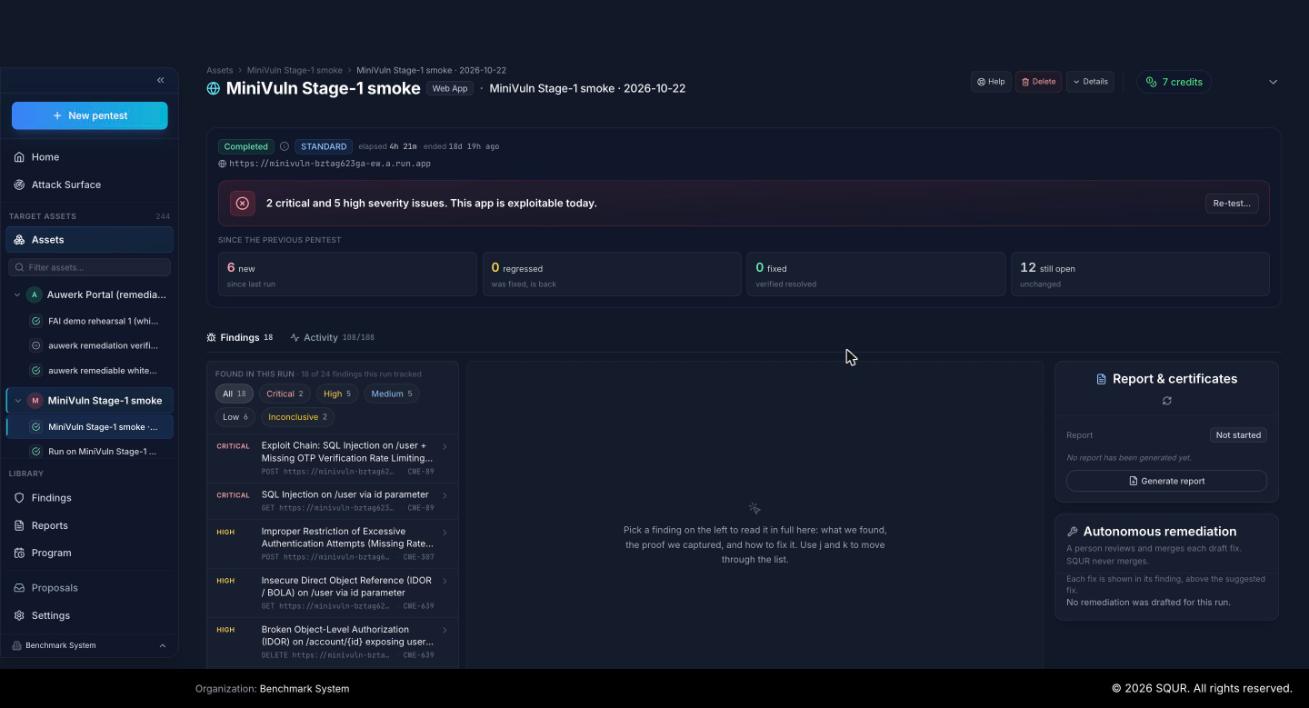
Every pentest is a run on an app (an asset). Open the app from Assets in the sidebar, then open the run, or click the run under the app in the sidebar.
The run page shows:
- The status and the current phase: Setup, Planning, Pentesting, Review
- Findings as they are confirmed
- An Activity tab with what SQUR is doing
- Report & certificates once the run completes
A normal pentest takes about 24 hours. You can pause and resume it. Pausing can change the discovery path.
Full guide on pentest controls | Active pentest
Step 3: Review findings
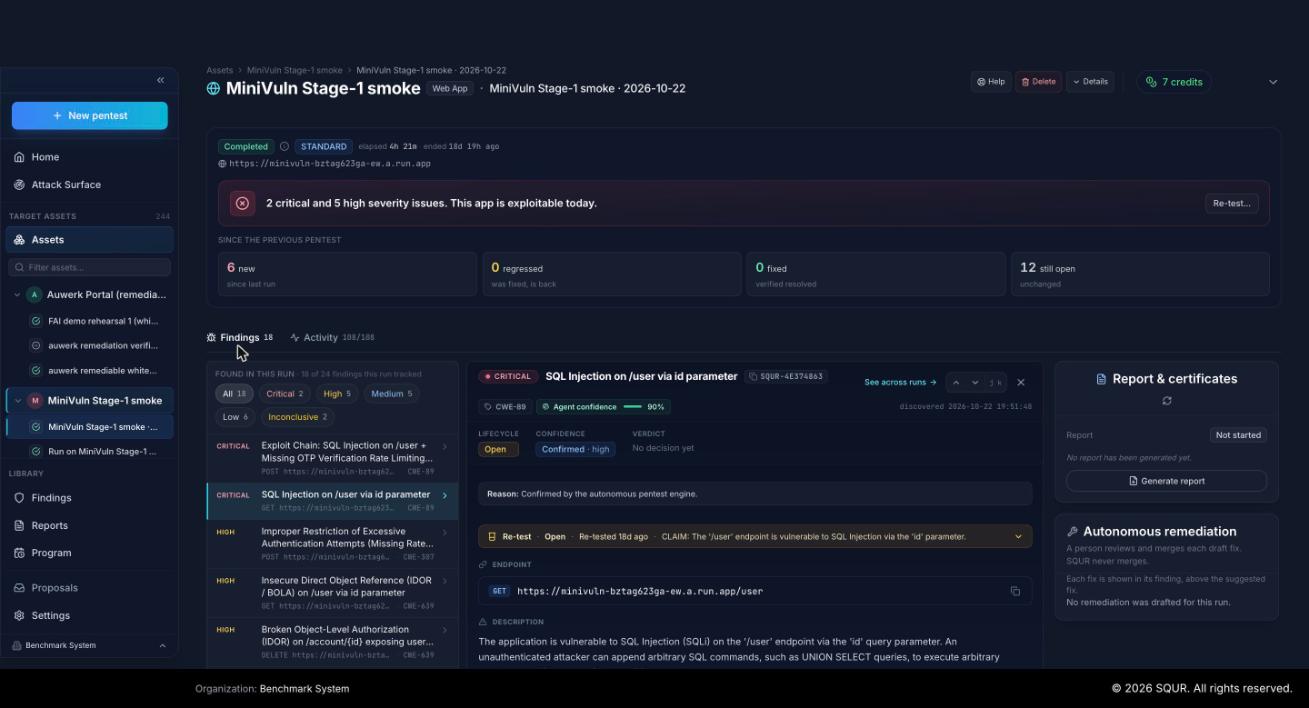
Select a finding to read what was found, the proof, and how to fix it. Each finding shows its lifecycle, a confidence label (for example Confirmed), and your verdict. Use Findings in the sidebar for all findings across all your apps.
You decide per finding: Mark fixed, Accept risk or Mark false positive. (Findings)
Full guide on managing findings
Step 4: Re-test your fixes
After you fix a finding, click Re-test. A verifier checks the live app again and records the result on the finding. Re-tests do not use a credit. (Retest)
Step 5: Download your report
Go to Reports and generate a document per run:
- Attestation Summary: 1-2 pages, safe to share with stakeholders and auditors.
- Detailed Report: findings, evidence and remediation guidance for your security team.
You can also issue a public certificate that proves the pentest was performed. (Report documents)
Next steps
- How SQUR works
- The pentest lifecycle
- Finding statuses
- Remediation view
- Common tasks
- Set up organization users and roles
- Billing and credits
Need help?
Visit squr.ai to learn more about Autonomous Pentesting, or book a demo to see SQUR in action.